What’s So Great About EXAIR’s CAD Library?

I was first introduced to CAD drawings when I was in the Navy. Right out of Nuclear Power School, I reported to a new construction Trident submarine. My first job was taking paper P&ID’s (Piping & Instrumentation Diagrams) to the Engineering room to verify that the valves, flanges, welds, pressure gauges, thermometers, etc. of various reactor and steam plant piping systems were in the right place, correctly labeled or marked, and visually free of defects. They’ve come a LONG way, technologically, since then:

When I left the Navy, I included some vague verbiage about CAD expertise on my resume. That actually got me a pretty cool job with an industrial pump company...making to-scale drawings of pump and drive assemblies, usually mounted on steel baseplates, that showed distances from the pump’s fluid ports to the baseplate mounting holes, so the millwrights & pipe fitters could work together to prepare for installation.

The absolute number one most important resource I had at my disposal was the ability to get to-scale CAD files (.dxf or .dwg) from pump, motor, gearbox, coupling, etc., manufacturers. The first rule of CAD is “never draw anything twice” and I rarely had to draw anything, except for items that we were fabricating ourselves. I had to call some manufacturers; others I could email; some would mail out a 3.5″ floppy disk (I know I’m dating myself with that one) or a CD (before THEY went obsolete) with everything they made on it…and some had drawing files you could download straight from their website. Just like EXAIR does.

Almost all the drawings I made back in the late 20th Century were 2D (front and side views), but nowadays, almost everyone uses solid modeling software (or apps) for drawings. This has the distinct advantage of being able to see the assembly from any angle, so you can tell right away if there’s going to be physical interference between two parts in close proximity to each other. While you can download models in a number of formats from the EXAIR website, .stp files are common to most modeling apps, so they’re the ones that get downloaded most.

If you have questions about EXAIR products — how they work, what they’re made of, which one is best for your application – give me a call. And if you need a drawing, I can help with that too.

Russ Bowman, CCASS

Application Engineer
Visit us on the Web
Follow me on Twitter
Like us on Facebook

Common Compressed Air Symbols

When any product / system is designed drawings are made to assist in the production of the designed product. For example if a mechanical part is being machined you may see symbols like these to verify the part is made correctly:

GD&T
GD&T Symbol Examples

Same with an electrical panel, they use symbols like the ones below to note the type of equipment used in a location.

electronic.JPG
Electrical Symbol Examples


Then there’s the Piping & Instrumentation Diagram (P&ID)…it depicts an overall view of a system, showing the flow (usually fluid or electricity) through that system’s components, giving the viewer an understanding of the operation, and expected results from said operation.

Some examples of symbols you might find in a compressed air system are:

Compressors:

all-compressor
The one on the left can be used for any air compressor. The others denote specific types of air compressor (from left:) Centrifugal, Diaphragm, Piston, Rotary, and Screw.


Air preparation & handling:

filters-and-regulator-symbols-and-pic.jpg
The symbols on the left denote the EXAIR products on the right: Automatic Drain Filter Separator, Oil Removal Filter, and Pressure Regulator

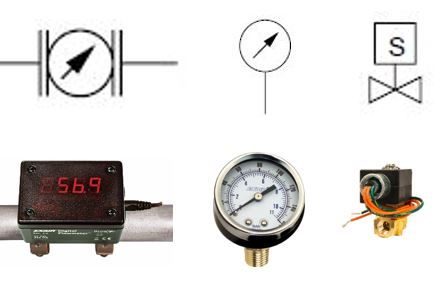
Instrumentation and control:

instrumentation-and-controls1.jpg
The symbols on top denote the EXAIR products below (left to right): Flowmeter, Pressure Gauge, and Solenoid Valve

Occasionally, we’re asked if there are standard ANSI or ISO symbols for any of our  engineered Intelligent Compressed Air Products…and there aren’t.  Perhaps one day they might make the cut, but for now, their standard convention is to choose a shape and call it out by name.  It might look something like this:

sak-pid1
From top left, and then down: Automatic Drain Filter Separator, Oil Removal Filter, Pressure Regulator, and Super Air Knife

If you have questions about any of the quiet EXAIR Intelligent Compressed Air® Products, feel free to contact EXAIR and myself or one of our Application Engineers can help you determine the best solution.

Jordan Shouse
Application Engineer
Send me an email
Find us on the Web 
Like us on Facebook
Twitter: @EXAIR_JS

Knowing Your Symbols Is Key To Understanding Your Drawings

There are all kinds of engineering drawings, used for all kinds of purposes:

  • Pipe fitters and millwrights use Plan & Elevation drawings to make sure fluid system flanges, elbows, tees, etc., line up with each other, and don’t run into anything.
  • Exploded view drawings help maintenance folks identify parts, and, when they need replaced, make sure the new ones go in the same way the old ones came out.
  • Fabrication and machining drawings (usually to scale) are used to ensure the part being made is the right size & shape, that mounting holes are in the right place, and that critical surfaces are as flat & smooth as they need to be.
  • Then there’s the Piping & Instrumentation Diagram (P&ID)…it depicts an overall view of a system, showing the flow (usually fluid or electricity) through that system’s components, giving the viewer an understanding of the operation, and expected results from said operation.  It should not be confused with its simpler cousin, the flow chart that is so dreaded by OTE-types (“Other Than Engineer”…you know who you are,) of which these are my favorite examples:

There’s a lot of “life lesson” in these two graphics.

The big difference between a flow chart and a P&ID is the symbols.  In fact, you can find ISO & ANSI standard symbols for many components you’ll find in fluid & electrical P&ID’s.  Some examples of symbols you might find in a compressed air system are:

Compressors:

The one on the left can be used for any air compressor. The others denote specific types of air compressor (from left:) Centrifugal, Diaphragm, Piston, Rotary, and Screw.

Air preparation & handling:

The symbols on the left denote the EXAIR products on the right: Automatic Drain Filter Separator, Oil Removal Filter, and Pressure Regulator

Instrumentation and control:

The symbols on top denote the EXAIR products below (left to right): Flowmeter, Pressure Gauge, and Solenoid Valve

Occasionally, we’re asked if there are standard ANSI or ISO symbols for any of our  engineered Intelligent Compressed Air Products…and there aren’t.  Perhaps one day they might make the cut, but for now, their standard convention is to choose a shape (user preference…you’re the one it’s gotta make sense to) and call it out by name.  It might look something like this:

From top left, and then down: Automatic Drain Filter Separator, Oil Removal Filter, Pressure Regulator, and Super Air Knife

Oh, and if you’ve ever got any questions about your compressed air system that you think looking at a drawing together could help us solve, you can send that drawing to us at techelp@exair.com, and one of us will be happy to help.

Russ Bowman
Application Engineer
EXAIR Corporation
Visit us on the Web
Follow me on Twitter
Like us on Facebook